

Wondering, “Are Xbox Controllers Compatible with PlayStation or Switch?” Read our expert guide on connecting your favorite controller to rival consoles using simple adapters.
Table of Contents
- Introduction
- The Short Answer: Do They Just Work?
- Why Cross-Compatibility Isn’t Native
- How to Connect an Xbox Controller to Nintendo Switch
- How to Connect an Xbox Controller to PlayStation (PS4/PS5)
- Understanding the Limitations: What You Lose
- Best Adapters for Controller Cross-Compatibility
- Is It Worth the Hassle? A Gamer’s Perspective
- Frequently Asked Questions (FAQs)
- Conclusion
Introduction
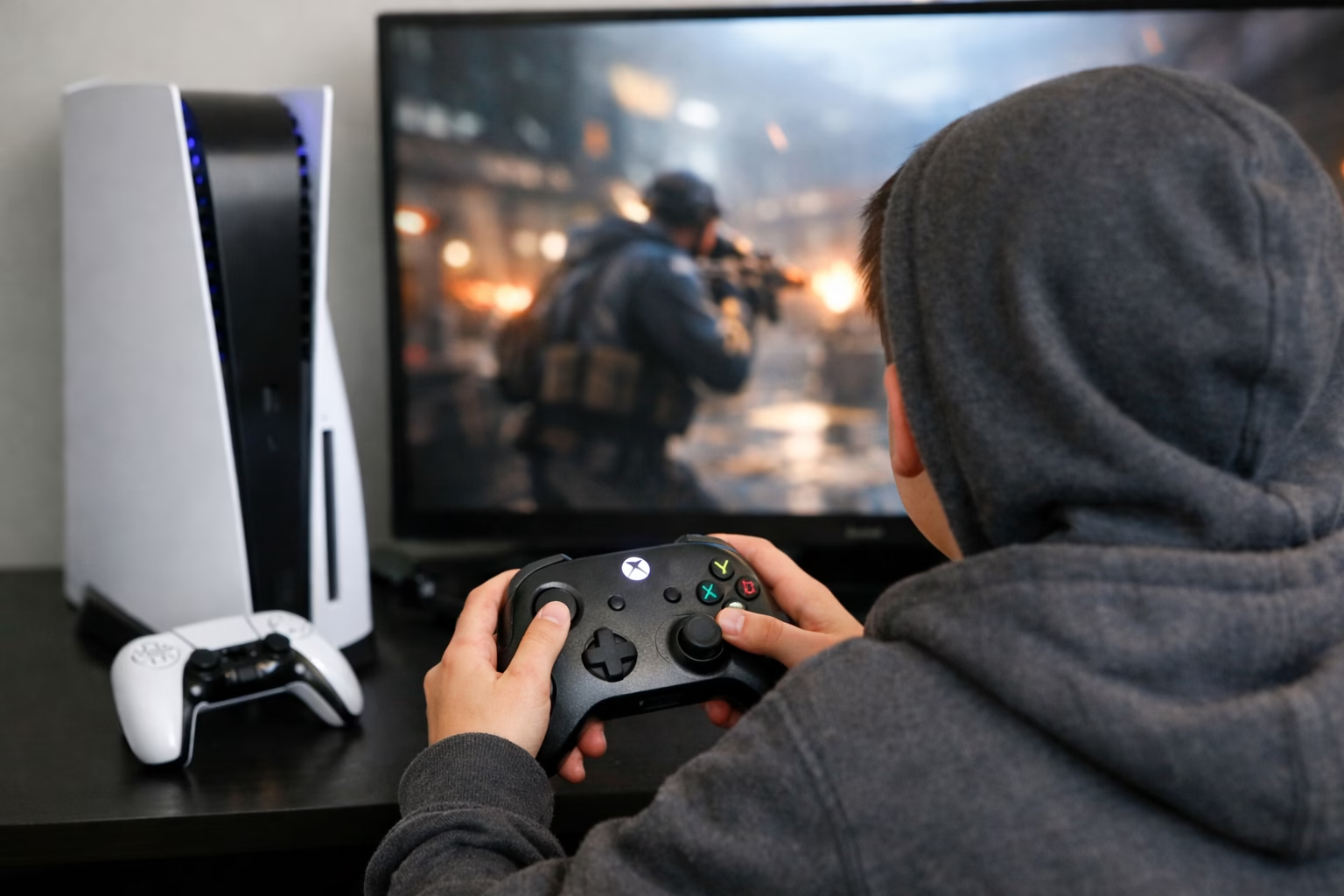
You’ve just bought a Nintendo Switch for its incredible exclusives, or perhaps you finally secured a PlayStation 5 to experience the latest next-gen blockbuster. However, as you sit down to play, your hands instinctively reach for your trusty Xbox Wireless Controller. Its ergonomic design and offset analog sticks feel perfect to you. This common scenario leads many gamers to ask the same crucial question: Are Xbox controllers compatible with PlayStation or Switch?
In an ideal world, every controller would work with every console seamlessly. Unfortunately, the gaming hardware landscape is rarely that simple. Each major console manufacturer designs their hardware within a closed ecosystem, prioritizing their own peripherals. But don’t lose hope just yet; while the official answer is often a frustrating “no,” the practical reality for determined gamers is a resounding “yes, with a little help.”
If you’re hoping to just press the sync button and magically pair your Xbox controller to a PS5 or Switch, prepare for disappointment. It won’t work. The consoles use different wireless protocols and proprietary security handshakes designed specifically to prevent this. However, a thriving market of third-party peripheral manufacturers has stepped in to bridge this gap. Through the use of clever USB adapters, you can trick your console into thinking your Xbox controller is a native device.
This guide will walk you through exactly how to achieve this controller cross-compatibility. We will dive deep into the technical reasons why they don’t connect natively, provide step-by-step instructions for both the Nintendo Switch and PlayStation ecosystems, and importantly, manage your expectations regarding limitations and feature loss. Whether you prefer the Xbox Elite Series 2 or just the standard Series X|S controller, we’ll show you how to use it on your rival console.
The Short Answer: Do They Just Work?
No. Out of the box, Xbox controllers are not compatible with PlayStation or Nintendo Switch consoles natively. You cannot simply connect them via Bluetooth or plug them in with a USB cable and expect them to function.
- Nintendo Switch: The Switch does not recognize Xbox controllers wirelessly or via wired connection on its own.
- PlayStation 4 (PS4): The PS4 will not recognize an Xbox controller as an input device natively.
- PlayStation 5 (PS5): The PS5 has the strictest security constraints and will not work with an Xbox controller directly for PS5 games.
However, the situation is far from hopeless. The “secret” lies in using a dedicated third-party USB wireless adapter. These dongles act as a translator between the controller and the console, converting the Xbox controller’s signals into a language the PlayStation or Switch can understand.
While this solution works surprisingly well, it is not perfect. It introduces minor additional costs and, depending on the console you are connecting to, some significant feature limitations that we will discuss in detail later. But if your primary goal is to use your preferred controller layout on a different system, an adapter is the only viable path forward.
Why Cross-Compatibility Isn’t Native
To understand why we need adapters, we need to briefly look under the hood. It’s not just about console manufacturers being difficult; there are genuine technical and security hurdles involved.
- Different Wireless Protocols: While modern Xbox controllers (Xbox One S and newer, including Series X|S) use standard Bluetooth for connecting to PCs and mobile devices, they use a proprietary wireless protocol called “Xbox Wireless” to connect to Xbox consoles for lower latency. Nintendo Switch and PlayStation consoles primarily use customized versions of Bluetooth. These devices simply aren’t programmed to “speak” to each other directly.
- Proprietary Security Handshakes: This is the biggest barrier. When you connect a DualSense controller to a PS5, the console sends a challenge signal to the controller, which the controller must answer correctly using a specialized security chip. If the console doesn’t get the correct response, it rejects the device. An Xbox controller doesn’t have the necessary chips or programming to answer a PlayStation or Nintendo security handshake.
- Feature Differences: Controllers have different feature sets. The Switch Pro Controller has an NFC reader for Amiibo and motion controls. The PS5 DualSense has haptic feedback and adaptive triggers. The Xbox controller has none of these. Consoles are designed to expect specific features from their controllers, and games are programmed to utilize them.
Consequently, a bridge is needed. USB adapters contain their own microchips that handle the security handshake with the console, pretending to be a legitimate wired controller. Simultaneously, they connect wirelessly to your Xbox controller, translating your button presses into signals the console accepts.
How to Connect an Xbox Controller to Nintendo Switch
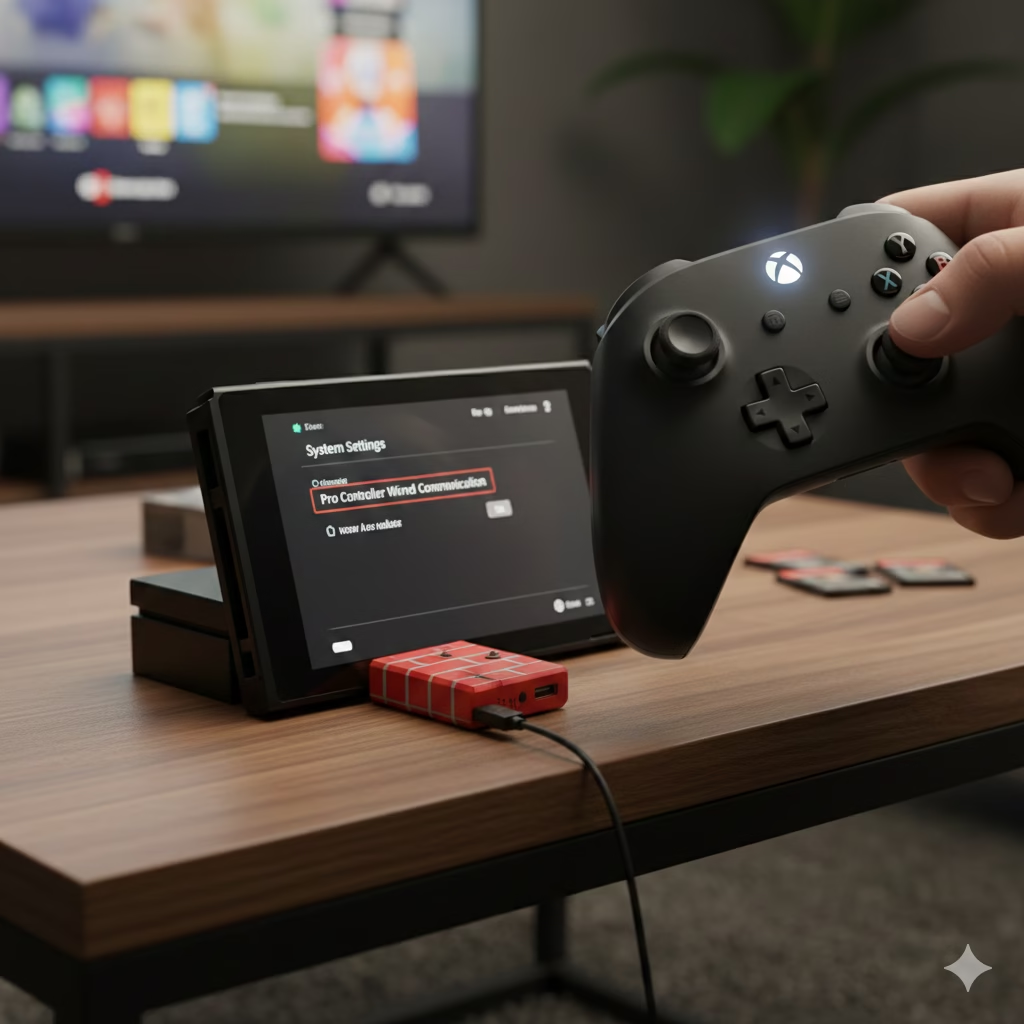
Connecting an Xbox controller to a Nintendo Switch is generally the easiest and most reliable cross-compatibility scenario. The Switch is surprisingly open to various USB controllers once a specific setting is enabled.
The most recommended method involves using a high-quality adapter, such as those from 8BitDo or Mayflash. For this guide, we will focus on the widely respected 8BitDo Wireless USB Adapter 2, as it offers excellent compatibility and low latency.
Step-by-Step Guide for Nintendo Switch:
- Prepare Your Switch Console: Before plugging anything in, turn on your Switch. From the home screen, navigate to System Settings > Controllers and Sensors.
- Enable Wired Communication: In this menu, find the option labeled Pro Controller Wired Communication and set it to On. This step is absolutely crucial; without it, the Switch’s USB ports won’t accept controller inputs from the adapter.
- Insert the Adapter: Plug your USB adapter (e.g., the 8BitDo Adapter 2) into one of the USB ports on the side of the Nintendo Switch Dock. If you are playing in tabletop mode with a Switch Lite or regular Switch, you will need a USB-C to USB-A OTG (On-The-Go) cable to connect the adapter directly to the console’s charging port.
- Put the Adapter into Pairing Mode: Press the small pairing button on the USB adapter itself. The LED light on the adapter should start blinking rapidly, indicating it’s searching for a controller.
- Put Your Xbox Controller into Pairing Mode: Turn on your Xbox controller by pressing the Xbox button. Then, press and hold the small sync button located on the top edge of the controller (near the USB-C charging port) for about three seconds. The Xbox button will begin flashing rapidly.
- Wait for Connection: The adapter and controller will find each other and pair automatically. Once connected, the LED light on both the adapter and the controller will stop flashing and remain solid.
Your Xbox controller is now connected! The Switch will recognize it as a wired Pro Controller. You can navigate menus and play games immediately. Keep in mind that the button layout (A, B, X, Y) on Nintendo is rotated compared to Xbox. You may want to remap buttons in the Switch system settings if your brain keeps hitting “B” instead of “A” to confirm actions.
How to Connect an Xbox Controller to PlayStation (PS4/PS5)
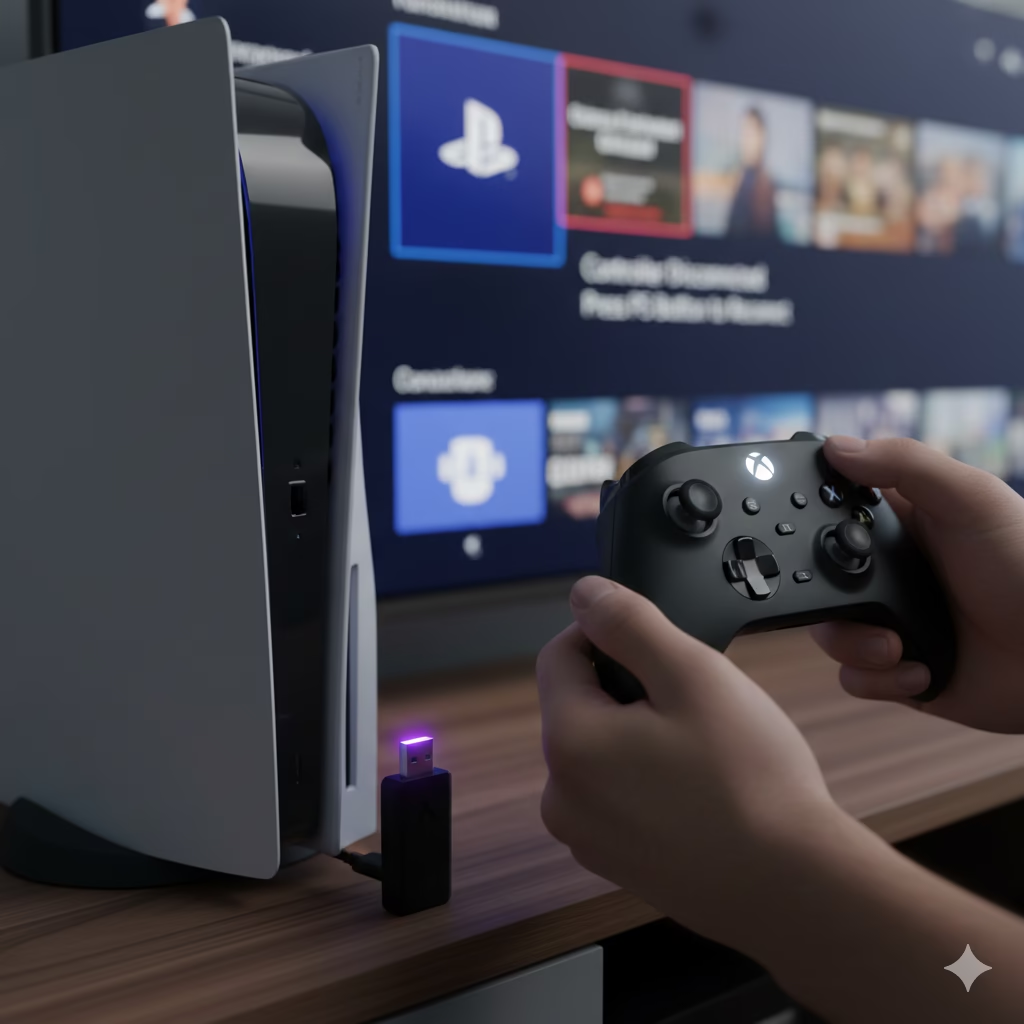
The PlayStation ecosystem is far more complex due to Sony’s stricter security measures, particularly with the PlayStation 5. The process differs significantly depending on which generation of console you are using.
Connecting to PlayStation 4 (PS4)
The process for the PS4 is very similar to the Nintendo Switch. You will need a compatible adapter, such as the Mayflash Magic-S Pro or Brook Wingman XB. These adapters handle the PS4’s security checks without much issue.
- Plug in the Adapter: Insert your chosen USB adapter into one of the front USB ports on your PS4 console.
- Set Adapter Mode (If Applicable): Some adapters, like the Mayflash, have different modes indicated by different LED colors. Ensure it is set to the “PS4” or generic controller mode according to the manual.
- Pair the Devices: Put the adapter into pairing mode by pressing its button. Then, put your Xbox controller into pairing mode by holding its sync button.
- Play: Once the lights go solid, the PS4 should recognize the controller. The Xbox button will typically function as the PlayStation button.
Connecting to PlayStation 5 (PS5) – The Big Hurdle
This is where things get complicated. The PS5 has a new security architecture designed to enforce the use of the DualSense controller for native PS5 games.
The Crucial Limitation: Currently, no adapter allows an Xbox controller to play native PS5 games directly.
If you try to use an adapter like the Mayflash Magic-S Pro on a PS5 to play a game like Spider-Man 2 or Demon’s Souls, the console will display a message stating that the controller is not compatible with PS5 games and will disconnect it after a few minutes.
However, there are two specific scenarios where it does work:
Scenario A: Playing PS4 Games on PS5 via Backward Compatibility
If you are running a PS4 game on your PS5 console (e.g., Bloodborne, God of War 2018), the console operates in a legacy mode that accepts PS4 controllers. In this specific scenario, adapters that work on PS4 will also work on PS5.
Follow the same steps as connecting to a PS4 above. Your Xbox controller will function perfectly for any PS4 title running on your next-gen hardware.
Scenario B: The Remote Play Workaround (For PS5 Games)
This is a convoluted method, but it is currently the only way to use an Xbox controller for actual PS5 games. It involves tricking the console by streaming the game to another device.
- Set up Remote Play: Install the PS Remote Play app on a PC, Mac, iPad, or Android tablet.
- Connect Xbox Controller to Streaming Device: Pair your Xbox controller via standard Bluetooth to your PC/tablet, not the PS5.
- Start Streaming: Launch the Remote Play app and connect to your PS5.
- Play: You are now controlling the PS5 streaming feed using your Xbox controller connected to your secondary device.
While this works, it is far from ideal. It introduces input lag dependent on your network quality, and you lose the visual fidelity of playing directly on your TV unless your PC is connected to it. This method is generally not recommended for competitive shooters or action games requiring precise timing.
Understanding the Limitations: What You Lose
Before you rush out to buy an adapter, it is vital to understand that you will not get a 1:1 experience. Because the Xbox controller lacks certain hardware features present on Switch and PlayStation controllers, you will lose functionality.
Here is a breakdown of common features you will lose when using an Xbox controller on rival platforms:
- Motion Controls / Gyro Aiming: The Xbox controller does not have a gyroscope. Games on Switch (like Splatoon or Zelda: Tears of the Kingdom) and PS4/PS5 that rely on motion for fine-aiming will not be fully playable. Some advanced adapters try to simulate this with stick movements, but it’s never as good as the real thing.
- HD Rumble / Haptic Feedback: The intricate, high-definition vibrations of the Switch Joy-Cons and the incredible haptic feedback of the PS5 DualSense are lost. The adapter will translate these signals into basic, standard Xbox controller rumble, which feels much less nuanced.
- Adaptive Triggers (PS5 only): The Xbox controller’s triggers cannot mechanically resist your finger press like the DualSense triggers do in games like Horizon Forbidden West or Call of Duty.
- Touchpad Functionality (PlayStation only): The large touchpad on the center of PlayStation controllers is missing. Most adapters map the touchpad “click” to the Xbox’s “View” (select) button. However, games that require swiping on the touchpad will be difficult or impossible to play properly.
- PlayStation Built-in Speaker & Microphone: The Xbox controller will not output game audio through its built-in speaker, nor will you be able to use its microphone for voice chat on PlayStation consoles directly.
- Headphone Jack Audio: On most setups, plugging a headset into the 3.5mm jack on the Xbox controller will not pass audio from the Switch or PlayStation console. You will need to connect your headset directly to the console or TV.
Best Adapters for Controller Cross-Compatibility
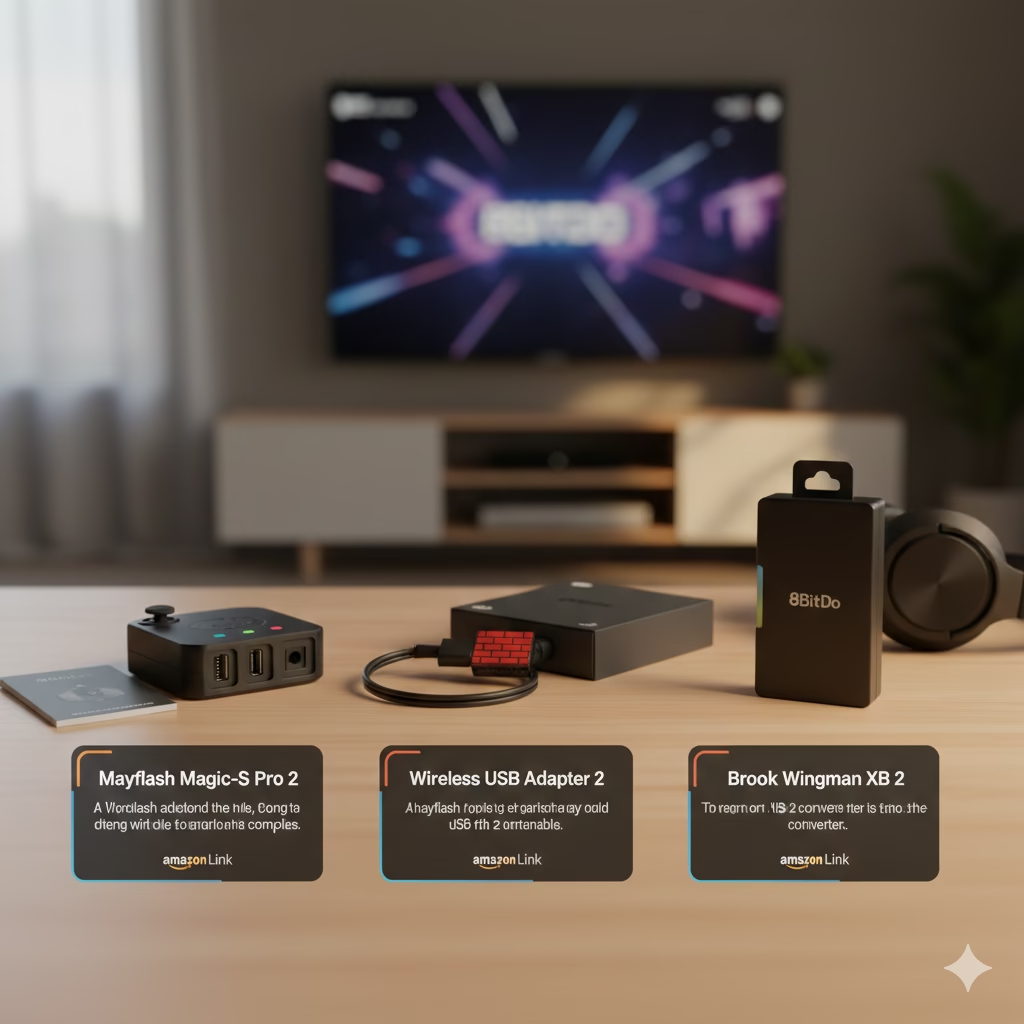
If you have decided that the pros outweigh the cons, you need to choose the right hardware. Don’t skimp here; cheap, generic adapters often suffer from terrible input lag and frequent disconnects. Stick to reputable brands.
Here are our top recommendations for reliable performance:
1. 8BitDo Wireless USB Adapter 2
This is arguably the best choice if your primary focus is the Nintendo Switch. It is small, aesthetically pleasing (especially the Mario-brick themed one), receives frequent firmware updates, and offers exceptionally low latency.
- Best for: Nintendo Switch, PC, Mac.
- Key Feature: The 8BitDo Ultimate Software allows you to customize button mapping, adjust stick and trigger sensitivity, and create macros on a PC, which are then saved to the adapter.
- Check Price on Amazon: “See the current price and specs for the 8BitDo Wireless USB Adapter 2 on Amazon.”
2. Mayflash Magic-S Pro 2 or Magic-NS
Mayflash is a veteran in the adapter space. Their “Magic” series dongles are incredibly versatile workhorses. They might not look as sleek as the 8BitDo options, but they are highly functional.
- Best for: Multi-console owners who want one adapter for everything (Switch, PS4, PC).
- Key Feature: They offer broad compatibility and feature a USB port on the adapter itself, allowing for wired pass-through connections if you prefer not to use Bluetooth. The side button allows you to manually cycle through different console modes.
- Check Price on Amazon: [“Check out the versatile Mayflash Magic-S Pro 2 adapter on Amazon.”]
3. Brook Wingman XB 2 / XE 2 Series
Brook is known in the fighting game community for making zero-lag converters for arcade sticks. Their Wingman series brings that same tournament-grade performance to standard controllers. They are generally more expensive but are famously reliable.
- Best for: Competitive gamers who need the absolute lowest possible input latency on PS4 or Switch.
- Key Feature: Focused entirely on performance and stability. They are often larger than other adapters but are built to last.
- Check Price on Amazon: [“View the Brook Wingman series of low-latency converters on Amazon.”]
Is It Worth the Hassle? A Gamer’s Perspective
So, “Are Xbox controllers compatible with PlayStation or Switch?” Technically no, practically yes. But should you bother?
For Nintendo Switch owners, the answer is almost certainly yes. The Switch Pro controller is expensive, and if you already own a great Xbox controller, spending $20-$40 on an adapter is a smart move. For games that don’t rely heavily on gyro aiming—like platformers, RPGs, or fighting games—the experience is near-flawless. The initial setup takes five minutes, and after that, it’s plug-and-play.
For PlayStation owners, it’s more complicated.
If you are on PS4, an adapter works great and is a viable alternative to buying a new DualShock 4.
If you are on PS5, it is generally not recommended for your main gaming experience. The inability to play native PS5 games directly is a massive dealbreaker. Furthermore, you are missing out on the DualSense’s immersive haptic features, which are a core part of the next-gen experience. The Remote Play workaround is too clumsy for everyday use.
Ultimately, these adapters are fantastic tools to have in your drawer. They save the day when a friend comes over for multiplayer and you’re one controller short, or when your main controller’s battery dies mid-session. Just go into it knowing the limitations.
Frequently Asked Questions (FAQs)
Here are answers to the most common questions regarding using Xbox controllers on other consoles.
1. Does using an adapter add input lag?
Yes, technically, adding any device into the signal chain adds some latency. However, with high-quality adapters like the 8BitDo or Mayflash running the latest firmware, this added lag is usually measured in single-digit milliseconds. For 99% of gamers, it is completely imperceptible. Only top-tier competitive fighting game players might notice a difference.
2. Can I get banned for using these adapters on PlayStation or Switch?
It is highly unlikely. These adapters present themselves to the console as standard wired controllers. They do not modify the console’s software or facilitate cheating in game code. Thousands of people use them daily without issue. However, using any third-party hardware always carries a theoretical microscopic risk, as it technically violates the console’s Terms of Service regarding unauthorized peripherals.
3. Does the headphone jack on my Xbox controller work when connected to PS5 or Switch?
No. The audio signal is not transmitted through Bluetooth in a way these adapters can decode and pass to the console. You must plug your headphones directly into the Switch console/dock, your TV, or use a wireless headset compatible with the PlayStation console.
4. Will my Xbox Elite Series 2 controller work?
Yes. The Xbox Elite Series 2 uses the same Bluetooth technology as standard Series X|S controllers. It connects perfectly with the recommended adapters. In fact, the on-the-fly profile switching and paddles on the Elite controller are handled internally by the controller itself, so they often still function correctly even when connected to a Switch or PS4.
5. Can I wake up my Switch or PS4/PS5 remotely with the Xbox controller?
Generally, no. The “wake on LAN/Bluetooth” feature relies on low-power states and specific protocols that third-party adapters usually cannot trigger. You will likely need to press the power button on the console itself to turn it on, after which the controller will connect.
6. Does this work on the Nintendo Switch Lite?
Yes. Because the Switch Lite does not have standard USB-A ports, you will need a small and inexpensive USB-C male to USB-A female OTG (On-The-Go) adapter. You plug the OTG adapter into the Switch Lite’s charging port, and then plug your wireless controller adapter into the OTG adapter.
7. Can I use multiple Xbox controllers on one console this way?
Usually, no. Most USB wireless adapters are designed to handle a one-to-one connection. One dongle connects to one controller. If you want to connect two Xbox controllers to your Switch for Mario Kart, you will need to buy two separate USB adapters and plug them into two separate USB ports on the dock.
8. Why doesn’t my Xbox controller sync to the adapter?
First, ensure your Xbox controller is a model that supports Bluetooth. The original, bulky Xbox One controllers (model 1537 and 1697, without the 3.5mm jack integrated into the plastic faceplate) do not have Bluetooth. You need an Xbox One S controller (model 1708) or the newer Series X|S controllers. Second, ensure the adapter firmware is updated via a PC. Third, ensure “Pro Controller Wired Communication” is enabled on Switch.
9. Do these adapters work for playing on PC as well?
Yes, almost all of them do. If your PC doesn’t have built-in Bluetooth, these adapters act as excellent, low-latency Bluetooth receivers for connecting your Xbox controller to a Windows gaming rig.
10. Are there any games that just won’t work at all?
On Switch, games that absolutely require motion controls (like 1-2-Switch or certain Mario Party minigames) will be unplayable. On PS4/PS5, games that require the touchpad swipe gestures or motion shaking (like trying to recharge your flashlight in The Last of Us by shaking the controller) will be problematic or impossible to progress through.
Conclusion
The question, “Are Xbox controllers compatible with PlayStation or Switch?” has a nuanced answer. While console manufacturers have built walls to keep their ecosystems separate, third-party hardware developers have built impressive ladders to get over them.
Through the use of affordable USB adapters, you can absolutely unlock the freedom to use your favorite Xbox controller on a Nintendo Switch or PlayStation 4. It’s a simple, effective solution that bridges the hardware gap. However, the dream hits a significant roadblock with the PlayStation 5’s security, limiting you to backwards-compatible PS4 games only.
By understanding the technical limitations—the loss of motion controls, haptic feedback, and audio support—you can make an informed decision. If you value the ergonomics of the Xbox controller above all else, these adapters are an essential accessory for your multi-console setup. Just remember to keep your DualSense handy when it’s time to fire up a true PS5 exclusive.