


Your phone is no longer just for scrolling through social media; it is now a portable powerhouse capable of running high-end games. However, touching a glass screen will never match the tactile precision of a real joystick. Imagine the frustration of missing a headshot in Call of Duty Mobile or failing a drift in Asphalt 9 simply because your thumbs slipped on the display.
This is exactly why learning how to connect an Xbox controller to iPhone or Android is the ultimate game-changer for your mobile experience. In a matter of seconds, you can transform your smartphone into a pocket-sized console that rivals the Nintendo Switch. Whether you are an iOS loyalist or an Android enthusiast, this guide will unlock the hidden potential of your hardware and give you the competitive edge you deserve.
Table of Contents
- Why You Need a Physical Controller for Mobile Gaming
- Identifying Your Xbox Controller Version
- Preparing Your Mobile Device for Connection
- How to Connect an Xbox Controller to iPhone via Bluetooth
- How to Connect an Xbox Controller to Android via Bluetooth
- Troubleshooting Common Connection Issues
- Optimizing Gameplay with Mobile Controller Clips
- Charging Solutions for Long Gaming Sessions
- Supported Games for Xbox Controllers on Mobile
- The Difference Between Bluetooth and Wired Connections
- Protecting Your Controller While Traveling
- Frequently Asked Questions
Why You Need a Physical Controller for Mobile Gaming
Mobile games have evolved significantly over the last few years. While touch controls are sufficient for casual puzzles, they often fail during intense competitive matches. Consequently, gamers are flocking to find out how to connect an Xbox controller to iPhone or Android to gain better accuracy. A physical controller provides haptic feedback and dedicated triggers that touchscreens simply cannot replicate. Furthermore, using a controller clears your field of vision, as your fingers are no longer blocking the screen.
When you learn how to connect an Xbox controller to iPhone or Android, you essentially bridge the gap between casual play and professional gaming. Many cloud services like Xbox Cloud Gaming (xCloud) and Nvidia GeForce Now actually require a controller for the best experience. Therefore, mastering this connection is the first step toward a true console-quality experience on the go.
Identifying Your Xbox Controller Version
Before you dive into the settings, you must ensure your hardware is compatible. Not every Xbox controller supports Bluetooth. Specifically, the original Xbox One controllers released in 2013 lack this feature. You can identify a Bluetooth-enabled controller by looking at the plastic around the Xbox button. If the plastic is part of the main faceplate, it has Bluetooth. However, if the plastic around the button is part of the top bumper section, it likely does not.
If you find that your older hardware is incompatible, you might consider upgrading to a new Xbox Wireless Controller which features textured grips and refined geometry. These newer models are designed specifically to work seamlessly with modern smartphones. Understanding your hardware version is vital before attempting to learn how to connect an Xbox controller to iPhone or Android.
Preparing Your Mobile Device for Connection
Setting up your phone is just as important as the controller itself. First, you should ensure that your operating system is up to date. For Apple users, you generally need iOS 13 or later to support Xbox controllers. Meanwhile, Android users typically need Android 5.0 or higher, although more recent versions offer much better stability.
Additionally, you should clear out any unused Bluetooth devices from your settings. Sometimes, having too many saved connections can cause interference during the pairing process. Once your phone is ready, the process of how to connect an Xbox controller to iPhone or Android becomes much smoother and faster.
How to Connect an Xbox Controller to iPhone via Bluetooth
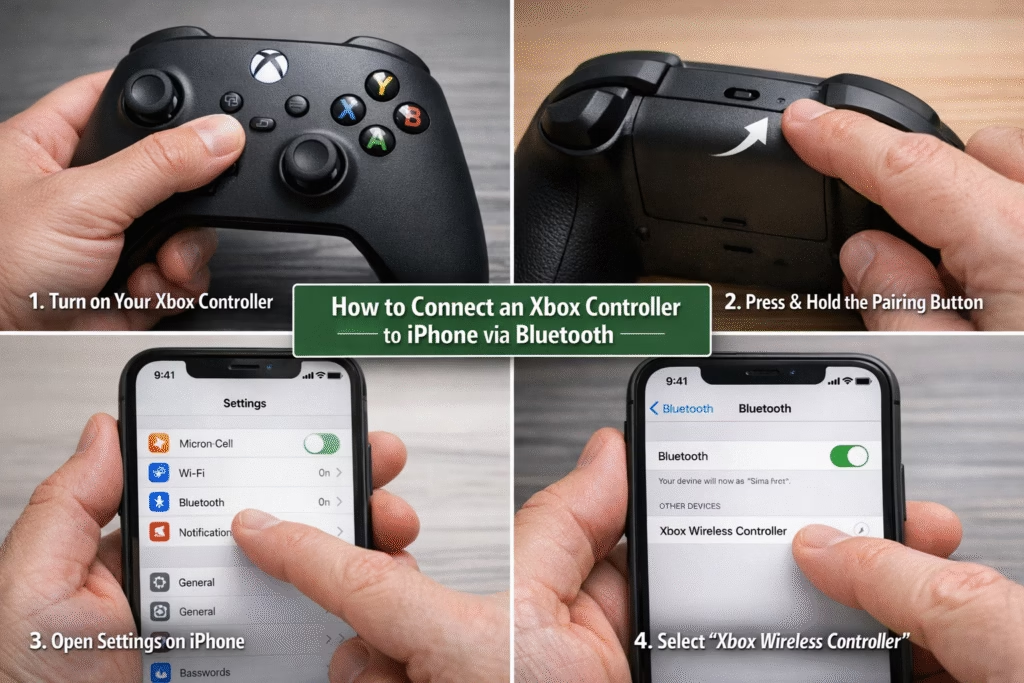
To begin the process on an iPhone, first open your Settings app and navigate to the Bluetooth section. Ensure that Bluetooth is toggled on. Next, pick up your Xbox controller and press the Xbox button to turn it on. Afterward, hold down the small Pair button on the top edge of the controller for a few seconds until the Xbox logo starts flashing rapidly.
On your iPhone screen, you should see “Xbox Wireless Controller” appear under the list of other devices. Simply tap on the name to initiate the pairing. Once the light on the controller stays solid, you have successfully mastered how to connect an Xbox controller to iPhone or Android for your iOS device. Now, any game that supports MFi (Made for iPhone) controllers will automatically recognize your inputs.
How to Connect an Xbox Controller to Android via Bluetooth
The steps for Android are quite similar but offer a bit more flexibility in terms of settings. Start by swiping down from the top of your screen to access the Quick Settings menu and long-press the Bluetooth icon. This will take you directly to the pairing menu. Just like before, put your controller into pairing mode by holding the top Pair button until the light flashes quickly.
On your Android device, tap Pair New Device. When the controller appears in the list, select it and confirm the pairing request if prompted. Learning how to connect an Xbox controller to iPhone or Android is particularly rewarding on Android because the platform often allows for more button remapping options. You can now enjoy emulators or native titles with absolute precision.
Troubleshooting Common Connection Issues
Even when you follow the steps for how to connect an Xbox controller to iPhone or Android perfectly, issues can still arise. One common problem is input lag. If your movements feel delayed, try turning off other nearby Bluetooth devices or moving away from Wi-Fi routers that might cause interference. Another frequent issue is the controller not showing up in the Bluetooth list. In this case, try replacing the batteries or ensuring the controller is fully charged.
Furthermore, if the controller connects but doesn’t work in a specific game, check the game settings. Not all mobile games support external controllers. Therefore, even after you know how to connect an Xbox controller to iPhone or Android, you should verify that your favorite titles like Genshin Impact or Minecraft have controller support enabled in their respective menus.
Optimizing Gameplay with Mobile Controller Clips
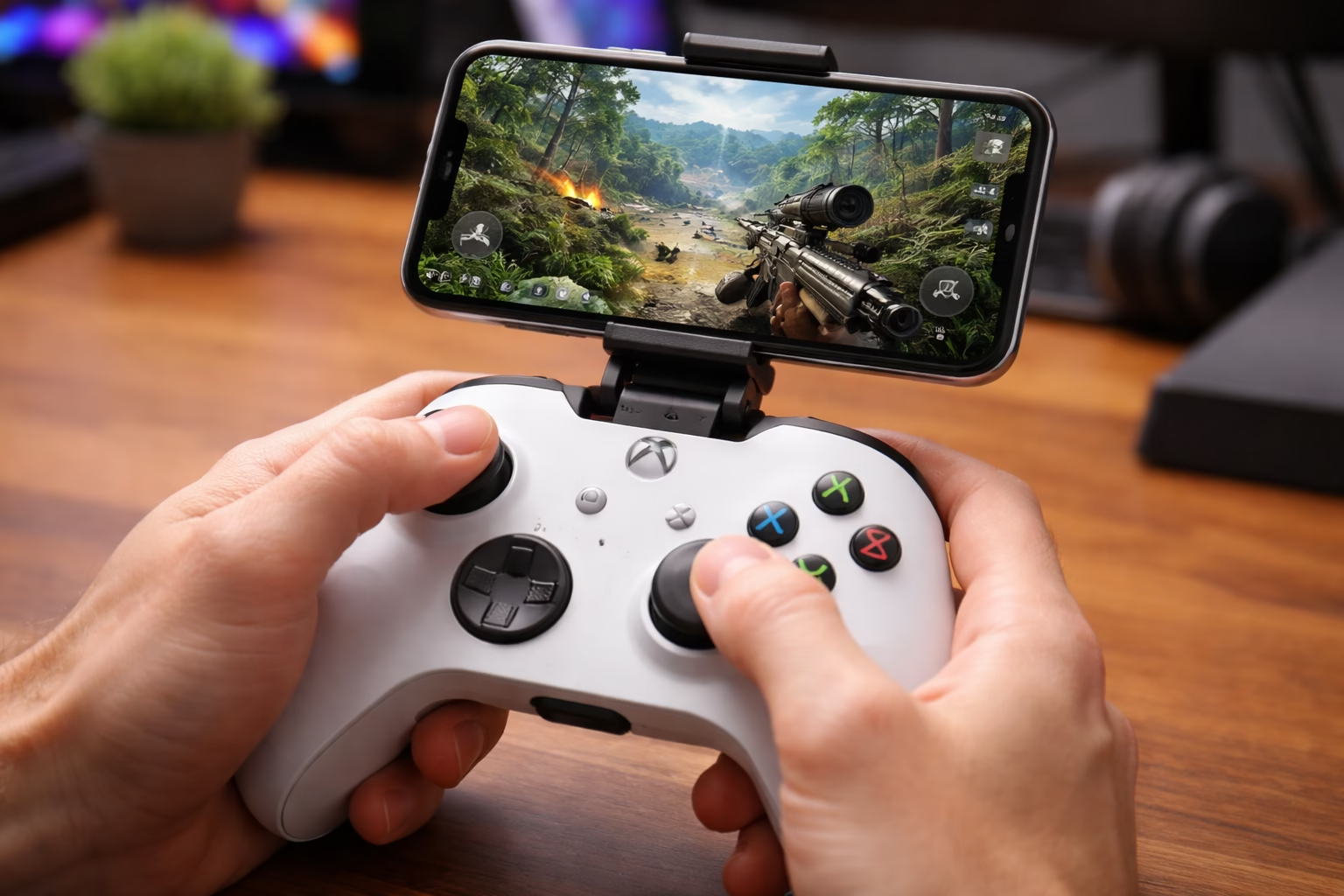
Holding a phone in one hand and a controller in the other is impossible. To truly enjoy your setup, you should look into a mobile gaming clip. These accessories attach directly to your controller and hold your phone securely at the perfect viewing angle. This setup mimics the feel of a dedicated handheld console.
By using a clip, you can play for hours without straining your neck or wrists. Many clips are adjustable, allowing you to find the center of gravity that feels most comfortable. When you combine the knowledge of how to connect an Xbox controller to iPhone or Android with the right physical accessories, the experience is significantly improved.
Charging Solutions for Long Gaming Sessions
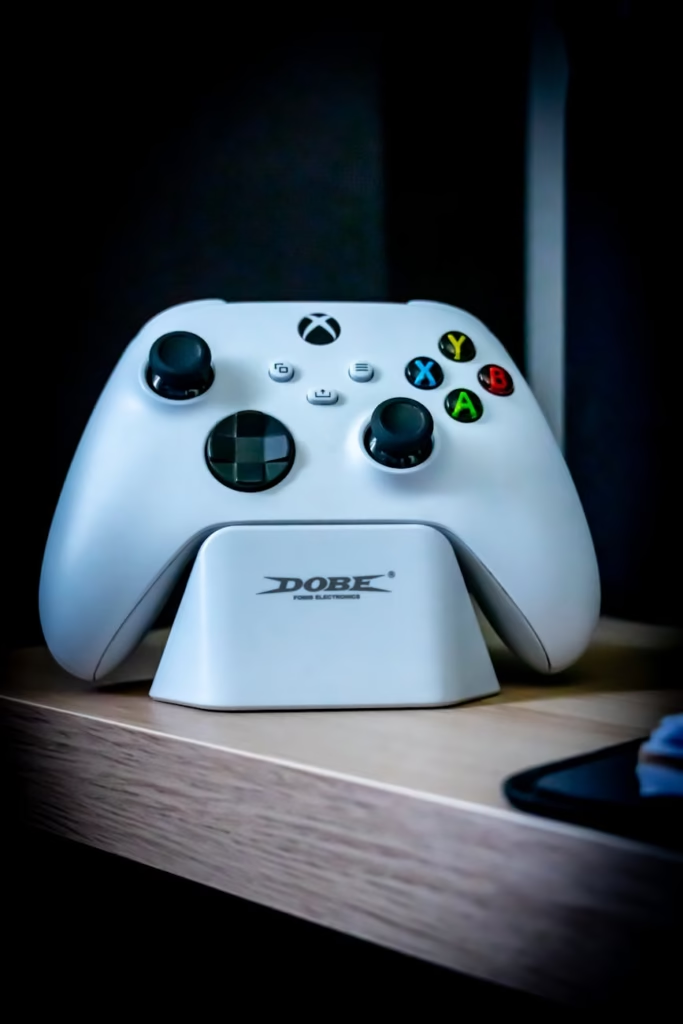
Bluetooth gaming can drain the batteries of both your phone and your controller quite quickly. For the controller, using rechargeable battery packs is much more efficient than constantly buying disposables. You might consider a dual charging station to ensure your gear is always ready for a session.
Additionally, your phone will use more power while processing high-end graphics and maintaining a Bluetooth connection. Consequently, keeping a power bank nearby or using a long USB-C cable is a smart move. Once you have figured out how to connect an Xbox controller to iPhone or Android, the last thing you want is for your hardware to die in the middle of a boss fight.
Supported Games for Xbox Controllers on Mobile
Knowing how to connect an Xbox controller to iPhone or Android is only half the battle; you also need to know what to play. Popular titles like Fortnite, Call of Duty Mobile, and Roblox offer native support. This means the buttons are already mapped correctly the moment you start the game.
Moreover, cloud gaming services allow you to play full PC and console titles like Halo Infinite or Forza Horizon 5 on your mobile device. The precision offered by an Xbox controller makes these games playable in a way that touch controls never could. Always check the App Store or Play Store descriptions to see if a game lists controller support as a feature.
The Difference Between Bluetooth and Wired Connections
While Bluetooth is the most convenient method, some users prefer a wired connection to eliminate all possibility of lag. To do this, you will need a USB-C to USB-C cable for most modern phones or a Lightning to USB adapter for older iPhones. When using a cable, you don’t need to worry about the pairing process or interference.
However, a wired connection can be more cumbersome and might limit your movement. Most casual and even semi-competitive players find that the Bluetooth method for how to connect an Xbox controller to iPhone or Android is more than sufficient. The latency in modern Bluetooth 5.0 and above is nearly imperceptible to the average human eye.
Protecting Your Controller While Traveling
Since the whole point of mobile gaming is portability, you will likely take your controller on the road. Joysticks are sensitive and can drift if they are crushed in a backpack. Therefore, investing in a protective carrying case is a wise decision. These cases often have extra space for your charging cables and phone clips.
Keeping your gear protected ensures that your connection remains stable and your buttons stay responsive. After you have learned how to connect an Xbox controller to iPhone or Android, maintaining that hardware becomes your next priority. A little bit of protection goes a long way in extending the life of your favorite gaming peripheral.
Frequently Asked Questions
Does every Xbox controller have Bluetooth?
No, only models released after 2016, specifically the Xbox One S controller and the Series X/S controllers, have built-in Bluetooth.
Will using a controller get me banned in mobile games?
Generally, no. Most games like Call of Duty Mobile put controller users into separate lobbies with other controller players to keep the competition fair.
Can I use the Xbox button to open menus?
On many Android devices, the Xbox button can be used to navigate the home screen, while on iOS, it often works as a shortcut for the game center.
Why does my controller keep disconnecting?
This is usually caused by low battery or interference from other 2.4GHz wireless devices. Try fresh batteries and see if the stability improves.
Is there a lag when using Bluetooth?
There is a very minimal amount of latency, but for most mobile games, it is not noticeable enough to affect your performance.
Can I connect two controllers to one phone?
While some Android phones support this for local multiplayer, iOS generally only supports one active gaming controller at a time.
Does it work with the Xbox 360 controller?
The Xbox 360 controller does not have Bluetooth, so it can only be connected via a wired USB adapter, which is often unreliable on mobile.
Do I need an app to make it work?
No, the connection is handled natively by the Bluetooth settings of your iPhone or Android device.
Can I map the buttons myself?
Some games allow in-game remapping, and Android has third-party apps for this, but iOS is more restrictive with button layouts.
Does the audio jack on the controller work?
Currently, most mobile operating systems do not support audio pass-through via a Bluetooth-connected Xbox controller.