


Meta Description: Master how to use an Xbox Controller on Windows 10/11 PC via USB, Bluetooth, or the Wireless Adapter. Dive into game-changing comfort and precision.
Table of Contents
- Introduction: Elevate Your PC Gaming Experience
- Why the Xbox Controller is the PC Gaming Gold Standard
- The Essential Hardware: What You Need
- Identifying Your Controller Type
- Connection Method Checklist
- Connection Method 1: The Simple USB Cable (Wired)
- Step-by-Step Wired Setup
- Pros and Cons of a Wired Connection
- Connection Method 2: Going Wireless with Bluetooth
- Prerequisites for Bluetooth Pairing
- Step-by-Step Bluetooth Setup on Windows 10/11
- Troubleshooting Bluetooth Pairing Issues
- Connection Method 3: The Dedicated Xbox Wireless Adapter
- Why Choose the Wireless Adapter?
- Step-by-Step Adapter Setup
- Advanced Controller Management
- Updating Controller Firmware via the Xbox Accessories App
- Customizing Button Mapping
- Troubleshooting Common Xbox Controller PC Issues
- Controller Not Being Recognized
- Frequent Disconnections and Latency
- Driver Update Solutions
- Choosing Games Best Suited for a Controller
- Frequently Asked Questions (FAQs)
- Conclusion: Seamless Gaming Awaits
1. Introduction: Elevate Your PC Gaming Experience
Picture this: You’ve just downloaded the latest, most immersive PC game—a sprawling open-world RPG or a fast-paced fighting game. You try the keyboard and mouse, but something feels… off. The intuitive flow, the muscle memory, the simple, effortless control of a console experience is missing. If you’re nodding your head, you’re not alone. For certain genres, the keyboard and mouse combo is simply outclassed by the tactile feedback and ergonomic design of a modern gamepad.
The good news is that Microsoft has made it incredibly straightforward to bridge the gap between console and PC gaming. If you own an Xbox controller, you already possess what is widely considered the gold standard for PC gamepads due to its near-universal compatibility through the XInput API. This native support means that most modern PC games will automatically recognize your controller and display the correct button prompts—a seamless, “plug-and-play” experience that many other controllers simply cannot match.
Therefore, learning how to use an Xbox Controller on Windows 10/11 PC isn’t just a convenience; it’s a fundamental upgrade to your gaming life. Before we plunge into the detailed connection methods, let’s take a quick look at the path to your superior gaming setup.
2. Why the Xbox Controller is the PC Gaming Gold Standard
Before addressing the core question of how to use an Xbox Controller on Windows 10/11 PC, it’s crucial to understand why this particular peripheral stands head and shoulders above many competitors. Ultimately, the Xbox controller’s dominance in the PC space isn’t an accident; it’s a result of a deliberate technical choice by Microsoft.
Fundamentally, the controller communicates using the XInput API. This programming interface, unlike the older DirectInput standard, was specifically designed for the Xbox family of controllers. Consequently, virtually every PC game that supports a gamepad is built with XInput in mind. This means when you connect an Xbox controller, the game instantly recognizes it, pre-maps all the buttons, and switches the on-screen prompts from keyboard icons to familiar A, B, X, Y buttons. In essence, it offers an unparalleled level of immediate compatibility.
Moreover, the controller boasts an ergonomic design that has been refined over several console generations. The contoured grips and asymmetrical stick placement are engineered for maximum comfort during long gaming sessions, reducing hand fatigue. Because of its sturdy construction and responsive analog sticks and triggers, you get both durability and precision. Many high-action games—like the Dark Souls series, Elden Ring, and most racing or fighting titles—are simply far more enjoyable and intuitive with an Xbox controller, making your effort to connect it well worth the while.
3. The Essential Hardware: What You Need
Undoubtedly, the first step in learning how to use an Xbox Controller on Windows 10/11 PC is to confirm you have the necessary gear. What you need largely depends on your specific controller model and your chosen connection method—wired or wireless.
Identifying Your Controller Type
Not all Xbox Wireless Controllers are created equal, especially when it comes to Bluetooth. Knowing which controller you have is vital for selecting the correct wireless method.
- Original Xbox One Controller (Pre-2016): These controllers do not have built-in Bluetooth capability. They require either a USB cable or the dedicated Xbox Wireless Adapter for Windows for a wireless connection.
- Newer Xbox One S, Xbox Series X|S, and Elite Series 2 Controllers (Post-2016): These models include Bluetooth support. You can identify them visually: the plastic around the Xbox logo button is part of the smooth front face of the controller, not a separate plastic insert. These can connect wirelessly using a USB cable, Bluetooth, or the Xbox Wireless Adapter.
Connection Method Checklist
| Connection Method | What You Need | Best For |
| Wired USB | A compatible USB cable (Micro-USB for Xbox One, USB-C for Series X | S) and a free USB port on your PC. |
| Bluetooth | A Bluetooth-enabled Xbox controller, a Windows 10/11 PC with working Bluetooth, and the Windows Anniversary Update (or later). | Portability, clutter-free desk setup, and playing on a laptop or small-form-factor PC. Offers great freedom of movement. |
| Xbox Wireless Adapter | The official Xbox Wireless Adapter for Windows accessory (a small USB dongle) and a free USB port. | Original Xbox One controllers (non-Bluetooth), connection of multiple controllers, and best-in-class low-latency wireless performance. |
Therefore, before proceeding, take a moment to identify which controller you have. Furthermore, check to see if your PC already has Bluetooth capability; if it doesn’t, you might need to invest in a small, inexpensive Bluetooth USB dongle or the official Wireless Adapter. Ultimately, your choice will balance convenience, performance, and cost.
4. Connection Method 1: The Simple USB Cable (Wired)
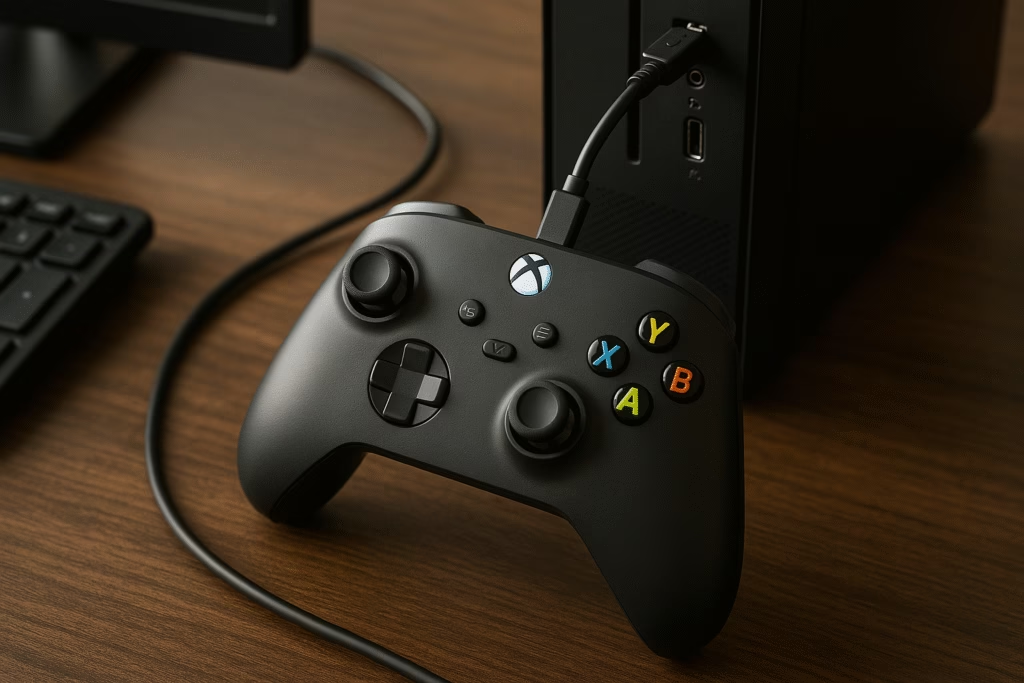
Without a doubt, the wired connection is the most effortless way to figure out how to use an Xbox Controller on Windows 10/11 PC. It’s universally compatible, requires no battery management, and provides the most stable, lowest-latency connection possible.
Step-by-Step Wired Setup
- Obtain the Correct Cable: Ensure you have the right USB cable for your specific controller.
- For Xbox One Controllers: You’ll need a Micro-USB to USB-A cable.
- For Xbox Series X|S or Elite Series 2 Controllers: You’ll need a USB-C to USB-A cable.
- Connect the Controller: Plug the smaller end of the cable (Micro-USB or USB-C) into the controller’s top port. Then, plug the standard USB-A end into any available USB port on your Windows PC.
- Wait for Recognition: Windows 10 and Windows 11 have native driver support for the Xbox controller. Almost immediately, your PC will recognize the device and automatically install the necessary drivers. This typically takes only a few seconds.
- Confirm Connection: The large Xbox button in the center of the controller will glow solid white once it is successfully connected and ready to use. Now, you can launch your favorite game and enjoy instant, lag-free gameplay.
Pros and Cons of a Wired Connection
| Pros | Cons |
| Zero Latency: Provides the fastest, most reliable input without any wireless interference. | Limited Mobility: Your range is restricted by the length of the cable. |
| Always Charged: No need to worry about AA batteries or a rechargeable pack; the cable provides continuous power. | Cable Management: Adds another cable to your desktop setup, potentially causing clutter. |
| Universal Compatibility: Works with virtually all versions of Windows 10/11 and all Xbox controller models. | Occupies a USB Port: Requires one dedicated port on your PC. |
Therefore, a wired connection is an excellent starting point, especially for competitive gaming where every millisecond counts, or if you simply prefer a no-fuss, always-ready setup.
5. Connection Method 2: Going Wireless with Bluetooth
Moving to a wireless setup offers incredible freedom of movement, transforming your PC gaming into a comfortable, couch-friendly experience. For those wondering how to use an Xbox Controller on Windows 10/11 PC without a cord, the Bluetooth option is the most common and often easiest wireless solution.
Prerequisites for Bluetooth Pairing
Before attempting to pair, please check the following:
- Controller Model: As mentioned earlier, your controller must be the Bluetooth-enabled model (Xbox One S, Series X|S, or Elite Series 2).
- PC Bluetooth: Your Windows 10 or 11 PC must have working Bluetooth capability. If your PC is a desktop without built-in Bluetooth, you will need a low-cost, plug-and-play Bluetooth USB adapter.
- Windows Update: Ensure your Windows 10 is running the Anniversary Update or later, or you are on any version of Windows 11.
Step-by-Step Bluetooth Setup on Windows 10/11
- Power On Your Controller: Press the Xbox button in the center of your controller to turn it on. The button will begin to blink slowly.
- Activate Pairing Mode: Locate the small, circular Pair button (also known as the Bind button) on the top edge of the controller, usually next to the USB port. Press and hold this button for about three seconds. The Xbox button will now start flashing rapidly, indicating it’s in discoverable pairing mode.
- Open PC Bluetooth Settings:
- On your PC, click the Start button and go to Settings (the gear icon).
- Select Bluetooth & devices (or Devices on older Windows 10 versions).
- Ensure the Bluetooth toggle at the top of the page is set to On.
- Add a New Device:
- Click on Add device (or Add Bluetooth or other device).
- Select Bluetooth from the list of options.
- Pair the Controller: Your PC should soon find and list the device, usually as Xbox Wireless Controller. Select it.
- Connection Complete: The Xbox button on the controller will stop blinking rapidly and remain solid white, signaling a successful connection. You are now free from the wires!
Troubleshooting Bluetooth Pairing Issues
Sometimes, the pairing process can be finicky. If your controller isn’t connecting, try these quick fixes:
- Check Batteries: Make sure your batteries (AA or rechargeable pack) are not low or dead. Low power can prevent proper pairing.
- Restart Everything: Turn off your controller (hold the Xbox button for 5-10 seconds), restart your PC, and then attempt the pairing process again.
- Update PC Drivers: In Device Manager, locate your PC’s Bluetooth adapter, right-click, and select “Update driver.” Sometimes, an outdated PC driver is the primary conflict.
- Controller Firmware: If all else fails, connect your controller via a USB cable and download the Xbox Accessories App from the Microsoft Store. This app allows you to check and install the latest firmware for your controller, which often fixes wireless connectivity bugs.
While Bluetooth is convenient, it is inherently more susceptible to wireless interference and occasionally experiences minor lag spikes compared to the other two methods. Nevertheless, it’s a brilliant solution for casual gaming and media consumption.
6. Connection Method 3: The Dedicated Xbox Wireless Adapter
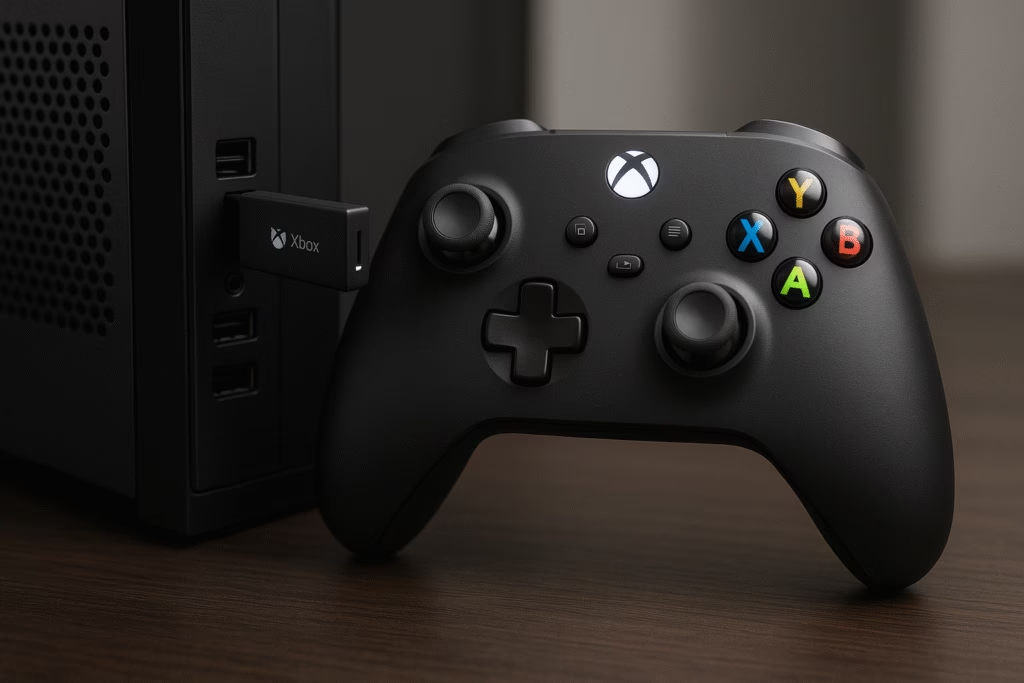
The third and final way for how to use an Xbox Controller on Windows 10/11 PC wirelessly is through the official Xbox Wireless Adapter for Windows. Although it requires an extra purchase, this method offers the best balance of wireless freedom and reliable performance.
Why Choose the Wireless Adapter?
The adapter uses Microsoft’s proprietary Xbox Wireless radio technology, which is the same low-latency protocol used by the Xbox console itself. This yields several key benefits:
- Lower Latency: The dedicated signal offers a more stable and faster connection than standard Bluetooth, making it the preferred wireless choice for competitive gamers.
- Headset Support: Unlike Bluetooth, the Xbox Wireless Adapter fully supports the audio jack on your controller, meaning you can plug an Xbox-compatible headset directly into the controller for in-game chat.
- Multi-Controller Support: A single adapter can connect up to eight controllers simultaneously, making it ideal for couch co-op gaming with friends.
- Compatibility: It is the only wireless option for the older, non-Bluetooth original Xbox One controllers.
For the most authentic and lag-free wireless console-like experience on your PC, you absolutely need this adapter. It’s a worthwhile investment for serious PC gamers. You can find the latest version of the official Xbox Wireless Adapter for Windows [Check out on Amazon: Xbox Wireless Adapter] and read reviews to ensure you are getting the most reliable connection technology available.
Step-by-Step Adapter Setup
- Plug in the Adapter: Insert the Xbox Wireless Adapter into a free USB port on your PC. Windows 10/11 will automatically detect and install the drivers.
- Turn on the Controller: Press the Xbox button to power on your controller.
- Activate Pairing on the Adapter: Press the small Pairing button (looks like a small antenna signal) on the side of the USB adapter. The adapter’s light will begin to flash.
- Activate Pairing on the Controller: Press and hold the small Pair button on the top edge of your controller (next to the USB port) for about three seconds. The Xbox button will start flashing rapidly.
- Connect and Confirm: The lights on both the adapter and the controller will flash a few times before both turn solid white. This confirms a successful, low-latency connection.
7. Advanced Controller Management
Now that you have successfully learned how to use an Xbox Controller on Windows 10/11 PC, you can take things a step further by managing and customizing the controller for an optimized experience.
Updating Controller Firmware via the Xbox Accessories App
Keeping your controller’s firmware up to date is paramount for ensuring maximum compatibility and preventing annoying connection bugs or disconnections.
- Install the App: Download and install the free Xbox Accessories App from the Microsoft Store on your Windows 10/11 PC.
- Connect the Controller: Connect your Xbox controller to the PC using a USB cable.
- Check for Updates: Open the Xbox Accessories App. It should automatically detect your controller. If an update is available, an Update Required message will pop up. Follow the on-screen prompts to install the new firmware.
This simple maintenance step can resolve a huge number of obscure connectivity and performance issues. Always ensure your controller is on the latest firmware version for the best results.
Customizing Button Mapping
The Xbox Accessories App isn’t just for updates; it also allows for custom button mapping on certain controllers (like the Xbox Elite Series and the standard Series X|S models).
- Remap Buttons: Within the app, you can remap any button to a different function, which is useful for games that don’t allow in-game remapping.
- Adjust Triggers and Sticks: For Elite controllers specifically, you can adjust the sensitivity curves of the analog sticks and the dead zones of the triggers, giving you a precise competitive edge. For instance, if you’re a fan of first-person shooters, you might want a tighter, more responsive feel from your analog sticks—a customization that’s simple to achieve within this application.
8. Troubleshooting Common Xbox Controller PC Issues
Even after successfully connecting, you might occasionally run into hiccups. Knowing how to troubleshoot these issues is key to a frustration-free gaming experience with your Xbox controller on your Windows PC.
Controller Not Being Recognized
If you plug in your controller or try to pair it and nothing happens:
- Wired Check: The first thing to check is the cable. Try a different USB cable, ensuring it is rated for data transfer (not just charging). Furthermore, switch to a different USB port on your PC; sometimes, front-panel ports or older ports can be unreliable.
- Bluetooth Check: Ensure the PC’s Bluetooth is On and the controller is in rapidly flashing pairing mode (by holding the pair button). Remember, older Xbox One controllers won’t connect via Bluetooth at all.
- Driver Check (Device Manager): Press
Windows Key + R, typedevmgmt.msc, and press Enter. Look under Microsoft Xbox One Controller or Xbox Peripherals. If you see a yellow exclamation mark, right-click and choose Update driver. In some cases, you may need to right-click and select Uninstall device, then restart your PC to allow Windows to reinstall the driver fresh.
Frequent Disconnections and Latency
Disconnections are almost always related to power or interference.
- Power: Replace your AA batteries with a fresh set or ensure your rechargeable battery pack is fully charged. Wireless controllers that are low on battery will often disconnect erratically.
- Interference: If using Bluetooth, ensure your PC isn’t surrounded by other devices emitting 2.4GHz signals (like Wi-Fi routers, other Bluetooth devices, or wireless headsets). The Xbox Wireless Adapter is far less prone to this interference, making it a better choice for crowded wireless environments.
- Firmware: Use the Xbox Accessories App (connected via USB) to verify and install the latest firmware, as noted in the previous section.
Driver Update Solutions
While Windows is great at automatic driver installation, occasionally a forced update is necessary.
- Manual Driver Update: In Device Manager, right-click on your controller entry, select Update Driver, then Browse my computer for driver software, and finally Let me pick from a list of available drivers on my computer. Select Microsoft Xbox One Controller and click next. This forces a clean installation of the default Windows driver. This simple method can surprisingly resolve stubborn connection faults.
9. Choosing Games Best Suited for a Controller
Once you’ve mastered how to use an Xbox Controller on Windows 10/11 PC, you’ll want to know which games benefit the most from your new setup. While an Xbox controller can technically be used for nearly any game, some genres are truly elevated by the precision of analog sticks and triggers.
The following categories are traditionally where a controller shines:
- Action RPGs and Soulslikes: Games like Elden Ring, Dark Souls, and The Witcher 3 are often console ports where the combat system, designed for a controller, is complex and requires seamless switching between movement, blocking, and attacks. A keyboard and mouse can feel cumbersome in comparison.
- Driving/Racing Games: The analog triggers of the Xbox controller provide nuanced control over acceleration and braking that a keyboard’s on/off keys simply cannot replicate. This leads to a smoother, more realistic driving experience in titles like Forza Horizon or F1 games.
- Fighting Games and Platformers: Precise directional input and rapid button presses are essential for these genres. The controller’s D-pad (especially the updated hybrid D-pad on Series X|S controllers) is a massive improvement over the arrow keys for fighting games, and the platformer genre feels far more natural with the tactile feedback of a gamepad.
- Third-Person Action/Adventure: Titles like the Batman Arkham series, Grand Theft Auto V, or Devil May Cry 5 feature complex character movement and camera control that benefit from the dual analog sticks.
To get the most out of your controller, specifically look for games that advertise “Full Controller Support” on platforms like Steam. You might also consider exploring the extensive library available through PC Game Pass [Grab the best deal on Amazon: PC Game Pass Subscription] which includes a vast number of controller-optimized titles that are perfect for your new setup.
10. Frequently Asked Questions (FAQs)
1. Do I need to buy any extra software to use my Xbox controller on a Windows PC?
No, absolutely not. Windows 10 and Windows 11 have native, built-in support for Xbox controllers. They are recognized automatically as soon as you connect them, whether wired or wirelessly. The Xbox Accessories App is an optional, free tool for firmware updates and customization.
2. Can I use an older Xbox 360 controller on my Windows 10/11 PC?
Yes, you can. A wired Xbox 360 controller will also plug and play via USB. However, the wireless Xbox 360 controller requires a specific, separate Xbox 360 Wireless Receiver—the modern Xbox Wireless Adapter is not compatible with the 360 controller.
3. Why is my Xbox controller constantly disconnecting via Bluetooth?
This is often a result of low battery, an outdated controller firmware, or interference from other wireless devices. The first step should always be to replace the batteries or use the Xbox Accessories App (via a USB connection) to update the controller’s firmware. If issues persist, consider the dedicated Xbox Wireless Adapter for a more robust connection.
4. Can I use my controller to play non-gaming applications or browse the web?
Yes, but not natively. While the controller is designed for games, you can use third-party tools like Steam’s Big Picture Mode (which supports desktop configuration) or tools like Controller Companion (paid software) to map controller buttons to mouse movements and keyboard keys for general PC use.
5. How many Xbox controllers can I connect to my PC at once?
The number depends on the connection method:
- Wired (USB): Up to eight controllers, limited only by your number of available USB ports.
- Bluetooth: Typically one or two controllers, depending on your PC’s specific Bluetooth adapter hardware.
- Xbox Wireless Adapter: Up to eight controllers, or four with chat headsets plugged in.
6. Is there a difference in performance between connecting via Bluetooth versus the Wireless Adapter?
Yes, there is a distinct difference. The official Xbox Wireless Adapter uses a proprietary low-latency radio frequency, providing a faster, more stable connection than standard Bluetooth. Bluetooth is prone to more input lag and wireless interference, making the Wireless Adapter the preferred choice for competitive gaming.
7. How do I know if my Xbox controller has Bluetooth capability?
Look at the plastic around the main Xbox button. If that plastic piece is a seamless part of the controller’s main faceplate (like on the Series X|S controller), it has Bluetooth. If it’s a separate piece of plastic (like on the original Xbox One controller), it does not have Bluetooth.
8. Can I charge my rechargeable battery pack while playing via a USB cable?
Yes, one of the key benefits of the wired USB connection is that it provides constant power, allowing you to use and simultaneously charge your official or third-party rechargeable battery pack without interruption.
9. What should I do if my controller buttons are mapped incorrectly in a game?
First, check the game’s settings to see if it allows for remapping. If not, open the Xbox Accessories App and try remapping the buttons there. For games launched through Steam, the platform’s extensive Steam Input feature allows you to customize and share controller configurations for nearly any game.
10. Do I need to buy AA batteries, or is there a rechargeable option?
Standard Xbox Wireless Controllers use two AA batteries. However, you can opt for an official Xbox Rechargeable Battery + USB-C Cable which offers a cost-effective and convenient way to play and charge without the constant need for disposable AA batteries. It’s a fantastic long-term solution for continuous wireless gaming.
11. Conclusion: Seamless Gaming Awaits
Ultimately, integrating an Xbox controller into your PC gaming setup is a game-changer that opens up a world of more immersive and comfortable gameplay, especially for the genres where a keyboard and mouse fall short. This entire process, from understanding which controller you have to mastering the various connection methods—USB, Bluetooth, and the dedicated Wireless Adapter—is simpler than you might have imagined. Because Windows 10 and 11 offer robust native support, you can spend less time configuring and more time playing.
The Xbox controller’s ergonomic design, paired with the reliability of its XInput API, truly solidifies its position as the best controller for PC gaming. Consequently, you are now fully equipped to enjoy the vast library of PC games with the precision, comfort, and seamless experience of a dedicated console. So go ahead, connect your controller, launch your favorite title, and prepare for a superior gaming session.
This video offers a visual guide on how to use an Xbox Controller on Windows 10/11 PC, specifically focusing on the Series X controller’s wired and wireless Bluetooth connections.
How to Connect Xbox Series X Controller to Windows 10/11 PC [Wired & Wireless]
One response to “How to Use an Xbox Controller on Windows 10/11 PC”
This is exactly what I needed to unwind after work. The games are exciting and it feels very fair. Highly recommend it to all my friends.